
OnlyFans Auto-Renew: How to Cancel Before You Pay
Auto-renew is the setting that keeps an OnlyFans subscription running month after month until you switch it off yourself. Many subscribers assume a lapse happens automatically, or that deleting the app ends the charge. It does not. This article shows where the toggle sits, when to act, and exactly what stays visible once a subscription ends.
The platform does not send a dramatic warning before each renewal. A charge simply appears, usually on the same date each month, based on when you first subscribed. Understanding that single detail prevents most unwanted payments.
OnlyFans has no built-in discovery feed or directory. That absence is the main reason ranking sites such as BestOnlyFans exist, because subscribers need somewhere to compare pages before committing money. It also means every subscription you hold was a deliberate choice, which makes reviewing them easier.
How Auto-Renew Actually Works
A subscription begins on the day you pay and renews on that same date each month unless you turn auto-renew off. The creator sets the price, and paid pages typically sit between $4.99 and $15, with many averaging $5 to $10. The maximum observed subscription price is $49.99, and the minimum is $4.99.
Free pages work differently. A free page is simply a subscription with the price set to $0. The creator earns through pay-per-view messages and tips instead of a monthly charge. That is why a free page never produces a renewal payment, though it can still produce spending if you buy content.
When a creator raises the subscription price, auto-renew stops automatically. Your existing access lasts until the current paid period ends, and you are not charged at the new rate unless you actively resubscribe.
| Stage | What happens | Your access |
| Renewal date reached | Payment is taken and the next month begins | Uninterrupted |
| Auto-renew switched off | No further payment is scheduled | Continues to period end |
| Final day of paid period | The subscription becomes inactive | Ends at expiry |
| After lapse | No charge occurs unless you resubscribe | Locked content hidden |
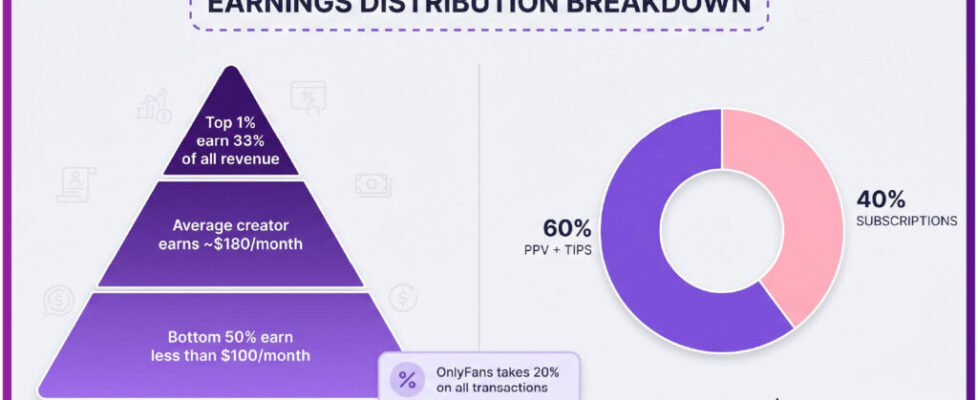
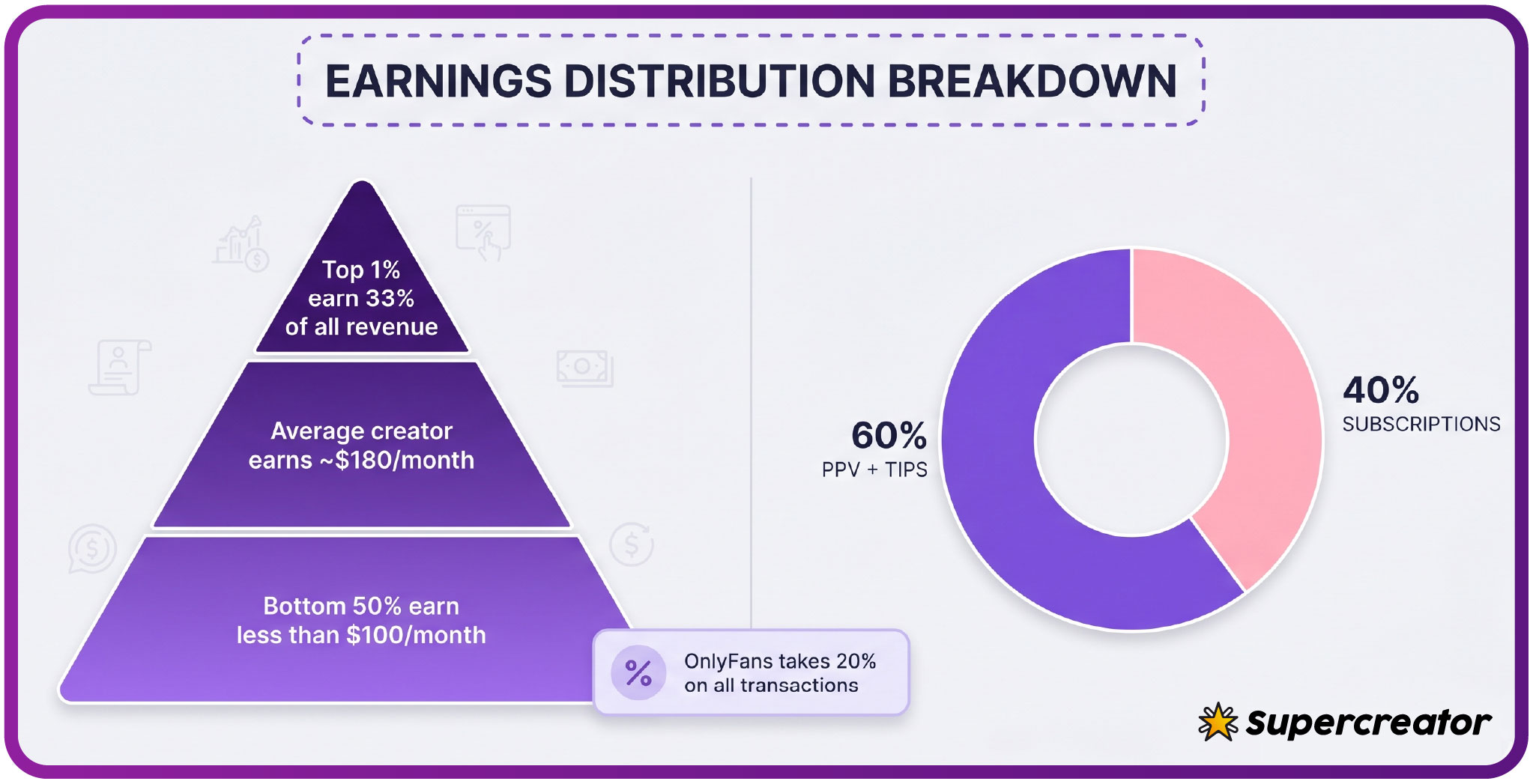
The platform takes a 20% fee on everything, including subscriptions, tips, and pay-per-view purchases. The creator keeps the remaining 80%. That split applies to free and paid pages alike, so it does not change what you personally pay.
Finding the Setting
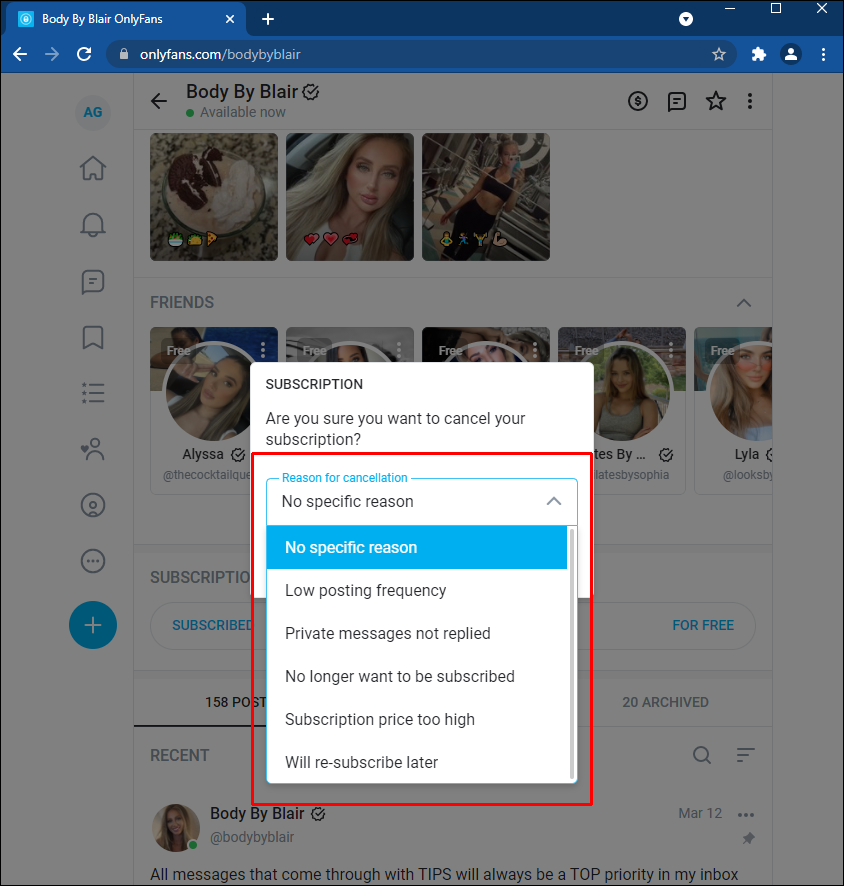
The auto-renew toggle sits inside the subscription entry itself, not in a general billing menu. Open the creator’s page or your subscriptions list, select the active subscription, and look for the renewal control. Turning it off takes effect immediately as a scheduling change.
Confirmation is the part people skip. After switching the toggle, the page should show that the subscription will not renew. If it still shows an upcoming renewal date, the change did not save. Check again before closing the app.
| Signal | Good example | Poor example |
| Toggle state | Shows renewing is off | Still shows an active renewal |
| Renewal date | Date removed or marked as ending | Next charge date still listed |
| Confirmation message | A clear saved notice appears | Screen closes with no message |
| Subscription status | Marked as ending at period close | Marked as active with no end |
Practical tip: after switching auto-renew off, close the app completely and reopen it. Load the subscription again and confirm the renewal date is gone. This single check catches almost every failed cancellation.
BestOnlyFans and similar directories list pages but cannot manage your billing. No ranking site can cancel a subscription for you, because the setting lives only inside your own account.
Timing Your Cancellation
You can switch auto-renew off at any point during a paid period, including the day before renewal. The charge stops, but the current period is not refunded and not shortened. Your access runs to the end of the month you already paid for.
This means cancelling early is never wasted. Acting on day two of a thirty-day period gives you twenty-eight more days of access with no further charge. Waiting until day twenty-nine gives you the same result but leaves less room for error.
- Cancel on the first day of a period: full remaining month of access, no next charge.
- Cancel mid-period: access continues to the original expiry date.
- Cancel the day before renewal: access ends the following day.
- Cancel after renewal: the new month is already paid and cannot be reversed.
- Cancel a free page: nothing changes, because no payment was scheduled.
A common timing mistake is waiting for a reminder that never arrives. The platform does not reliably prompt you before a renewal, so the calendar reminder has to be yours.
What You Keep After Cancelling
Once the paid period ends, the subscription becomes inactive. Content that was gated behind the subscription is no longer visible, and the creator’s page shows as unsubscribed. Your account itself is unaffected, and no history is deleted.
Messages you sent remain in your own message list, though some media inside them may no longer open. Purchased pay-per-view items are the exception in most cases, since those were bought separately from the subscription. Tips already sent are not returned.
Budgeting for the change is simple once you list the subscriptions you hold. Add the monthly amounts together and compare that figure with what you actually used during the past month. The gap is usually the answer.
- Month one after cancelling: the freed amount stays in your account.
- Month two: no renewal appears on your statement.
- Month three: any remaining paid pages still renew unless you switched them off too.
- Ongoing: pay-per-view and tips become the only possible costs from that creator.

Cancelling Versus Pausing
OnlyFans does not offer a true pause that freezes a subscription and restores it later at the same terms. In practice, cancelling is the pause. You stop the renewal, keep access to the end of the period, and resubscribe whenever you choose.
Some creators run promotional first months below $4.99. Those offers apply to new subscribers, so returning later may cost more than your original rate. That is a pricing detail worth checking before you cancel a page you intend to rejoin.
- Mistake: assuming a deleted app cancels the subscription.
- Mistake: assuming an inactive account stops billing.
- Mistake: switching off auto-renew on one page and ignoring the rest.
- Mistake: expecting a refund for the current paid period.
- Mistake: relying on the creator to cancel on your behalf.
Re-Subscribing Later
Returning after a break works like a fresh subscription. You pay the current price, not the price you originally paid, and the renewal date resets to the new payment date. Nothing about the old subscription carries over automatically.
If the creator raised prices while you were away, auto-renew on your new subscription will reflect the new amount. If they run a promotional month, that rate applies only to the first period unless stated otherwise.
- Price may have changed since your last subscription.
- Renewal date resets to the day you resubscribe.
- Older posts may be reachable again once access returns.
- Pay-per-view items bought earlier usually stay accessible.
- Any bundle or discount offered before may no longer exist.
freeonlyfans fitness pages are a useful comparison point here, because fitness creators often keep lower monthly rates than other categories.
Checking Your Active List
A quarterly review prevents surprise charges. Open your subscriptions list, sort by renewal date, and record what each one costs. The average paid page sits between $5 and $10, so a handful of forgotten subscriptions can add up quickly.
This is also where BestOnlyFans-style directories help for discovery, though they play no role in billing. Use them to find pages, then manage the money side directly in your own account.
- Note the renewal date for each active subscription.
- Note the monthly amount and whether it is a promotional rate.
- Note whether the page is free or paid.
- Note how often you actually open it.
- Note whether auto-renew is on or off.
Common Mistakes
The largest error is believing that removing the app or logging out ends a subscription. Billing is tied to your account, not to the device. As long as auto-renew is on and the account exists, payments continue.
A second error is cancelling one page and assuming all of them stopped. Each subscription has its own toggle, and each must be switched off individually. Reviewing the full list takes a few minutes and prevents repeated charges.
A third error is waiting for a confirmation email that never comes. The reliable proof is the subscription screen itself showing that renewal will not occur. If that screen still shows a renewal date, the job is not finished.
FAQ
Does deleting the app cancel my subscription?
No. Billing follows the account, so the subscription renews until auto-renew is switched off inside the subscription settings.
Can I get a refund for the current month?
Generally no. Switching auto-renew off stops the next charge, but the period already paid for runs to its expiry date without a refund.
What happens when a creator raises the price?
Auto-renew stops automatically, and your access lasts until the current paid period ends unless you resubscribe at the new rate.
Do free pages ever charge me?
A free page has a price of $0, so no renewal payment occurs. Any cost comes only from pay-per-view purchases or tips you choose to send.